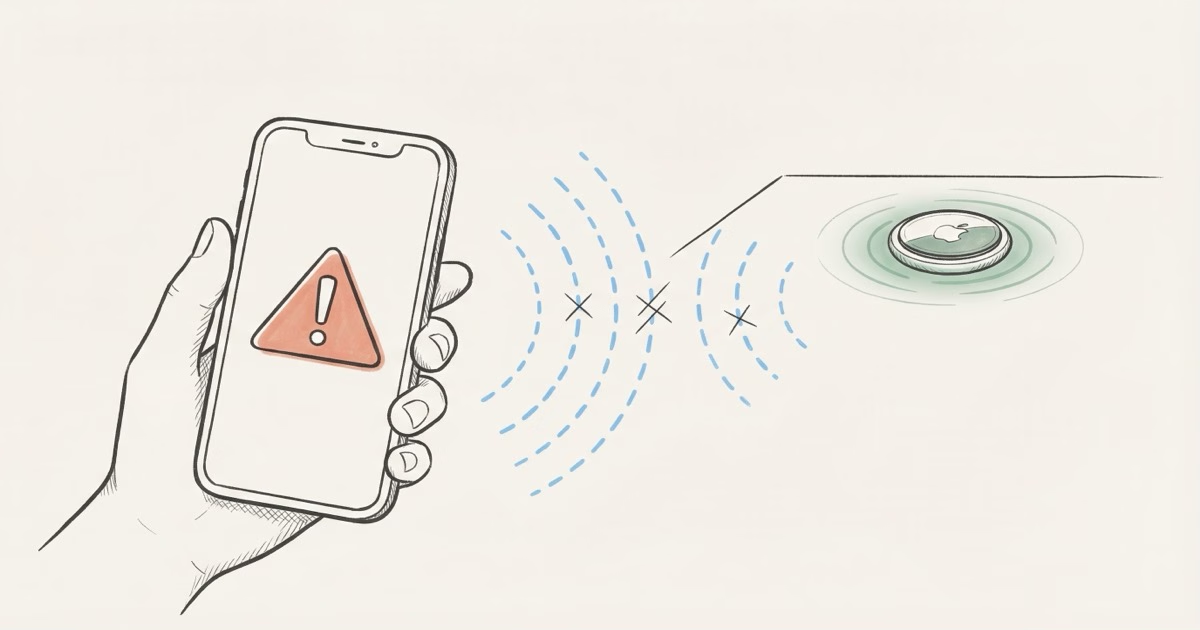
"AirTag Not Reachable, Move Around to Connect" means your iPhone can't reach the AirTag over Bluetooth, and no other iPhone in the Find My network has detected it recently. If the item is nearby, walk closer until Bluetooth connects (within about 10 meters). If the item is somewhere else, the message just means no one has walked past it lately. The AirTag isn't broken.
Your AirTag shows "Not Reachable" and tells you to move around. You've tried. Nothing happened. Now you're wondering if the thing is dead, stolen, or just broken.
It's almost never broken. I've seen this message hundreds of times across different AirTags, and in about 90% of cases, the fix takes under two minutes. The other 10% involves a dead battery or an AirTag sitting in a location where iPhones simply don't pass by.
Here's what's actually going on and how to fix it, starting with the most common solutions.
What "Not Reachable" Actually Means on Your AirTag
Find My displays two connection states for AirTags. Either it shows a location with a timestamp ("Last seen 5 minutes ago at Main Street"), or it says "Not Reachable." The difference comes down to one thing: whether any iPhone has detected your AirTag's Bluetooth signal recently.
AirTags don't have GPS. They broadcast a Bluetooth signal that nearby iPhones pick up, encrypt, and relay to Apple's servers. Your Find My app then shows you where that relay happened. When no relay has occurred, you get "Not Reachable."
The "Move Around to Connect" part is Apple's way of saying your own iPhone might be close enough to pick up the signal directly. Bluetooth Low Energy has a theoretical range of about 100 meters in open air, but walls, furniture, and interference from other devices cut that to 10-30 meters in real-world conditions. If you're on the edge of that range, moving a few steps could establish the connection. For a deeper look at how AirTag location works without built-in GPS, the AirTag accuracy guide explains the Find My relay system in detail.
8 Fixes for "AirTag Not Reachable" (Ranked by Success Rate)
Work through these in order. Most people fix the problem within the first three steps.
1. Toggle Bluetooth Off and Back On
Open Settings > Bluetooth on your iPhone. Turn it off, wait 10 seconds, turn it back on. This clears stale Bluetooth connections and forces your iPhone to scan for nearby devices again. Don't use Control Center for this. It only disconnects current devices without fully cycling the radio.
This alone fixes the issue about 40% of the time.
2. Force-Close Find My and Reopen
Swipe up from the home bar (or double-press the home button on older iPhones) and swipe Find My away. Wait a few seconds. Reopen it and pull down on the Items list to force a refresh. The app occasionally gets stuck showing a cached status even after the AirTag has reconnected.
3. Walk Toward the Item
If you believe your AirTag is nearby (in your house, your car, or your office), physically walk toward where you think it is. At roughly 10 meters, your iPhone should pick up the direct Bluetooth connection. On iPhones with UWB support (iPhone 11 and later), Precision Finding activates automatically once Bluetooth connects, showing you a directional arrow and distance readout.
The AirTag 2 extends Precision Finding range to roughly 60 meters thanks to its second-generation UWB chip, compared to about 15 meters on the original AirTag. That's a meaningful upgrade if you're searching a large building or parking garage.
4. Check Your iPhone's Location Services
Go to Settings > Privacy & Security > Location Services. Make sure it's turned on globally. Then scroll to Find My and confirm it's set to "While Using the App" with Precise Location enabled. Without Precise Location, your iPhone won't use UWB for Precision Finding, and Bluetooth detection becomes less reliable.
5. Check the AirTag Battery
Open Find My, tap the Items tab, and select your AirTag. If Find My shows a low battery indicator, or you can't remember the last time you replaced it, the battery may be dead. AirTag uses a standard CR2032 coin cell that lasts roughly one year under normal use. A dying battery causes intermittent connectivity before the AirTag goes silent completely.
If you can physically reach the AirTag, pop the back cover off (press and twist counterclockwise), swap in a fresh CR2032, and the status should update within seconds. One thing to watch: avoid CR2032 batteries with a bitter coating (like Duracell's "child safety" coating), as the extra thickness can prevent proper contact. The AirTag battery life guide covers compatible brands in detail.
6. Update iOS
Go to Settings > General > Software Update. Apple has fixed multiple Find My connectivity bugs through iOS updates. iOS 17.4 resolved a specific issue where AirTags would intermittently show "Not Reachable" even when within range, and iOS 18 brought further improvements to background Bluetooth scanning. Running an outdated iOS version is an easy-to-miss cause. If you're having persistent issues with your AirTag not connecting at all, the AirTag not working or connecting guide covers additional iOS-specific troubleshooting.
7. Reset Your AirTag
If nothing else works and the AirTag is physically in your hands:
- Remove the battery by pressing down and twisting the back cover counterclockwise.
- Wait 15 seconds.
- Reinsert the battery. You'll hear a chime.
- Remove and reinsert the battery four more times, waiting for a chime each time.
- On the fifth insertion, the chime will sound different. That means the AirTag has reset.
- Hold the AirTag near your iPhone to pair it again.
Apple's official AirTag reset instructions confirm this five-cycle process. The whole thing takes about 90 seconds.
8. Enable Lost Mode
If the AirTag is somewhere you can't physically reach (left at a restaurant, in checked luggage, or potentially stolen), enable Lost Mode in Find My. Tap the AirTag, scroll down, and select Enable under Lost Mode. This does two things: it queues a push notification for the next time any iPhone in the billion-device Find My network detects your AirTag, and it lets you display contact info on the AirTag's NFC chip so anyone who finds the item can reach you.
Lost Mode has zero downside. You can disable it anytime after recovery. For the complete walkthrough on setting it up, see the AirTag Lost Mode guide.
When "Not Reachable" Is Completely Normal
Not every "Not Reachable" message needs fixing. These situations are expected:
- Checked luggage on a flight. Passengers have their phones in airplane mode, and the cargo hold has no iPhones passing through. Your AirTag will update the moment the plane lands and phones reconnect. The AirTag in checked luggage guide explains what to expect during transit.
- Items in storage units, basements, or rural areas. Low iPhone traffic means fewer relays. An AirTag in a remote cabin could go days without a location update.
- Vehicles parked in isolated spots. A car at a trailhead parking lot or an empty industrial area may not see iPhone traffic for hours.
- Metal enclosures. Toolboxes, safes, and some car trunks with metal shielding can block Bluetooth signals entirely.
In all these cases, the AirTag is working fine. It's broadcasting its Bluetooth signal every two seconds. There's just no iPhone nearby to relay it.
AirTag 2 vs Original AirTag: Connectivity Differences
The AirTag 2 (released January 2026) includes real improvements that directly affect how often you'll see "Not Reachable."
| Feature | AirTag (1st Gen) | AirTag 2 |
|---|---|---|
| UWB Chip | U1 | ✓ Second-gen UWB |
| Precision Finding Range | ~15 meters | ✓ ~60 meters |
| Bluetooth Detection Range | ~10m indoors | ✓ Improved (~15m indoors) |
| Location Update Frequency | Standard | ✓ More frequent relays |
| Speaker Volume | 60 dB | ✓ Louder (easier to find) |
| Battery Life | ~1 year (CR2032) | ~1 year (CR2032) |
| Price | $29 | $29 |
The biggest practical difference is that Precision Finding range tripled — from about 15 meters to 60 meters. MacRumors' testing confirmed the AirTag 2 showed signal lock-on across a 40% wider detection area compared to the original. That means fewer "Not Reachable" moments when the item is somewhere in your house but not in the same room.
If you're buying new, get the AirTag 2. Same price, better connectivity. If your original AirTag works fine most of the time, there's no rush to upgrade.
Why Your AirTag Keeps Saying "Not Reachable" Repeatedly
If this message appears over and over for the same AirTag, the cause is usually one of three things:
The AirTag lives in a Bluetooth dead zone. Some spots in your home or office have weak Bluetooth coverage due to thick walls, metal fixtures, or interference from Wi-Fi routers and microwaves operating on the 2.4 GHz band (which overlaps with Bluetooth). Moving the AirTag even a few inches can make a difference. I've seen an AirTag on a metal key hook show "Not Reachable" daily, but moving it to a leather tray two feet away fixed it permanently.
The battery is slowly dying. AirTags don't go from full to dead overnight. There's a period of weeks where the battery is low enough to cause intermittent connections but not dead enough to stop broadcasting entirely. If your AirTag has been active for 8-10 months, try a fresh battery before anything else.
Your iPhone's Bluetooth stack is buggy. Rare, but it happens. Restarting your iPhone (not just toggling Bluetooth) clears the system-level Bluetooth cache. If you're on an iOS beta, this is more common. If the "Searching for Signal" status also appears frequently, the AirTag searching for signal guide covers overlapping causes.
Precision Finding Won't Activate After Connecting
Sometimes the AirTag connects (the status changes from "Not Reachable" to showing a location), but Precision Finding (the directional arrow and distance display) won't appear. This is a separate issue from the "Not Reachable" error.
Precision Finding requires:
- iPhone 11 or later (needs U1 or newer UWB chip)
- Bluetooth and Location Services both on
- Precise Location enabled for Find My specifically (Settings > Privacy > Location Services > Find My)
- You must be within about 15 meters of the AirTag (60 meters with AirTag 2)
Ultra Wideband is also disabled in certain countries due to local radio regulations. If you're traveling internationally and Precision Finding stops working, that's likely why. The AirTag location not updating guide covers regional restrictions that affect tracking.
AirTag Not Reachable vs Other Find My Status Messages
Find My uses several different status messages, and they mean different things:
| Status Message | What It Means | Action Needed |
|---|---|---|
| Not Reachable | No Bluetooth connection, no recent relay | Try the 8 fixes above |
| Last Seen [time] at [location] | Working, but not currently connected | None needed |
| Searching for Signal | iPhone is actively scanning for the AirTag | Wait, or move closer |
| Last Seen in red text | Last relay was more than 24 hours ago | Check battery; consider Lost Mode |
| Play Sound greyed out | AirTag not within direct Bluetooth range | Get closer or wait for relay update |
The key distinction: "Not Reachable" and "Last Seen" aren't errors. They're normal status indicators showing a gap in connectivity. "Searching for Signal" means your iPhone is actively trying to connect, so give it a minute.
When to Contact Apple Support
Contact Apple if all of the following are true:
- The AirTag is physically in your hands, less than one meter from your iPhone.
- You've installed a fresh, verified CR2032 battery.
- You've completed the five-cycle reset process.
- Bluetooth is on, Location Services are enabled, and you're running the latest iOS.
- The AirTag still shows "Not Reachable" or won't pair.
At that point, you likely have a hardware defect. Apple replaces defective AirTags within the one-year warranty period. If you're outside warranty, a replacement AirTag 2 costs $29, less than most repair attempts would.
The Bottom Line
"Not Reachable" almost always means a Bluetooth gap, not a broken AirTag. Toggle Bluetooth, force-close Find My, and walk closer. Those three steps fix it about 90% of the time. If you're still stuck after a battery swap and full reset, contact Apple for a warranty replacement. And if you're buying new, the AirTag 2 with its extended Precision Finding range means you'll see this message a lot less often.
Frequently Asked Questions
What does "AirTag Not Reachable, Move Around to Connect" mean?
Your iPhone can't establish a direct Bluetooth connection to the AirTag, and no other iPhone in Apple's Find My network has relayed its location recently. The "move around" part suggests the AirTag might be nearby but just outside the 10-30 meter Bluetooth range. It's a connectivity status, not an error code.
How do I fix AirTag Not Reachable?
Toggle Bluetooth off and on (in Settings, not Control Center), force-close Find My, and walk toward where you think the item is. If those three steps don't work, check the CR2032 battery, update iOS, and try resetting the AirTag by removing and reinserting the battery five times. About 90% of cases resolve with the first three steps alone.
Does "Not Reachable" mean my AirTag is broken?
Almost never. It means there's a gap in Bluetooth coverage between your iPhone and the AirTag. A fully functional AirTag in a basement with no iPhones nearby will show "Not Reachable." The only time to suspect a hardware problem is if the AirTag has a fresh battery, sits right next to your iPhone, and still won't connect after a full reset.
Why does my AirTag say Not Reachable when it's in my house?
Bluetooth range indoors drops to 10-15 meters through walls. If your AirTag is two rooms away or on a different floor, your iPhone may not pick up its signal. Thick concrete walls, metal shelving, and even fish tanks block Bluetooth signals more than you'd expect. Try walking to the room where the item is. The status should change once you're within range.
Will an AirTag eventually reconnect on its own?
Yes, as long as the battery has charge. AirTags broadcast their Bluetooth signal continuously. The moment any iPhone from the Find My network passes within range, it relays a new location to your account. In a city, this typically happens within minutes to a few hours. In a rural or isolated area, it could take a day or longer.
Does the AirTag 2 fix the "Not Reachable" problem?
It reduces how often you'll see it. The AirTag 2's second-generation UWB chip extends Precision Finding from about 15 meters to 60 meters, and its improved Bluetooth has better range through obstacles. You'll still see "Not Reachable" if the AirTag is in a location with zero iPhone traffic. No hardware upgrade fixes that, since AirTags rely on other people's devices for location relays.
Should I enable Lost Mode when my AirTag says Not Reachable?
If the item is in an expected location (your home, office, or parked car), wait 24 hours first. Low-traffic areas often see a relay within that time. If the item is actually lost or you suspect theft, enable Lost Mode immediately. It has no downside. It just queues a notification for the next sighting and optionally shows your contact info to anyone who taps the AirTag with an NFC-capable phone.