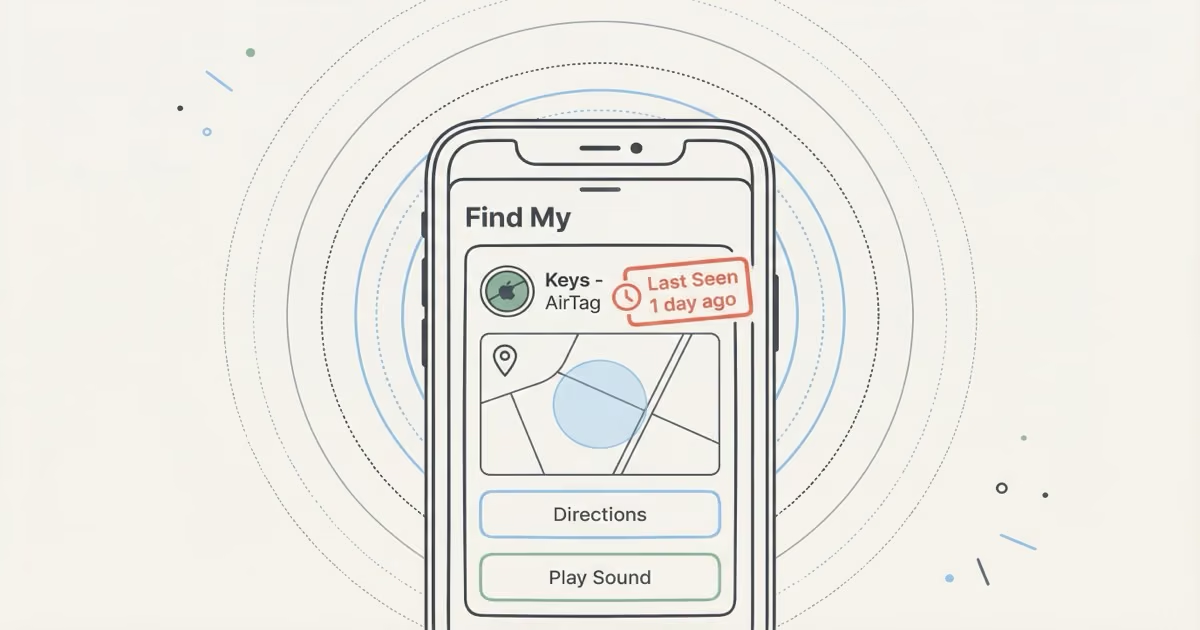
A red "Last Seen" timestamp in Find My means no iPhone on Apple's crowd network has detected your AirTag for roughly 24 hours or more. The location shown is stale. Gray "Last Seen" is normal and just means it's momentarily offline. Red is Find My telling you the data is too old to trust. Fix it by enabling Lost Mode, heading to the last known spot, and replacing the CR2032 battery if it's been over a year.
That red timestamp stops people cold. It looks like a malfunction, but it's not. Apple color-codes the "Last Seen" label in Find My on purpose, and the shift from gray to red tells you one specific thing: how old the location data is, not whether your AirTag is broken.
- Red "Last Seen" means no iPhone has detected the AirTag for roughly 24 hours — the location shown on the map is stale, not that the device is broken.
- The four main causes are: low iPhone density near the item, dead CR2032 battery (replace after 12 months), signal-blocking environments like metal or concrete, and the AirTag physically separated from the item.
- Enabling Lost Mode is the single most useful action — it sends a push notification the moment any iPhone anywhere detects the tag again.
- AirTag 2's improved Bluetooth antenna reduces red timestamps by picking up passing iPhones from 40–50 meters vs. 30–40 meters, but cannot eliminate them when coverage is truly absent.
- AirTag stores no location history — the red pin and timestamp are the only data points available; for persistent gaps, a cellular GPS tracker is the right tool.
Red vs. Gray "Last Seen" on AirTag: The Difference
Find My uses two colors for the "Last Seen" label. The distinction is simple but worth understanding before you panic.
| Display | What It Means | Concern Level |
|---|---|---|
| Current location shown | AirTag is online right now, recently pinged by a nearby iPhone | No issue |
| "Last Seen" in gray | Offline momentarily, last contact was within hours | Normal |
| "Last Seen" in red | No detection for ~24+ hours, location data is stale | Pay attention |
Apple hasn't published an official time threshold for the color change. But reports across the Apple Community forums consistently point to roughly 24 hours as the cutoff. Once the last detection crosses that mark, Find My flips the label to red.
Both colors mean the same underlying thing: your AirTag connected to a nearby iPhone at that timestamp, and nothing has pinged it since. The only variable is how long ago. I've seen the label flip to red on an AirTag tucked in a storage unit after a single quiet weekend — the item hadn't moved, and the tracker was fine, but the building had essentially no foot traffic.
4 Reasons Your AirTag Shows Last Seen in Red
Each cause has a different fix. These four scenarios cover nearly every red timestamp case, ordered by how common they are.
1. The Item Is in a Low-iPhone-Density Area
AirTags don't have GPS. Not a single chip. They rely entirely on other people's iPhones passing within Bluetooth range (about 30-40 feet) to silently relay their position to Find My. A quiet residential garage, a rural cabin, a storage unit at the edge of town: these are all places where a full day can pass without a single iPhone walking by. That silence turns the label red. Your AirTag is working fine. There's just nobody around to hear it.
2. Dead or Dying Battery
A dead CR2032 means the AirTag can't broadcast at all. What you're seeing in Find My is the last position it reported before it went silent. CR2032 batteries last about 12 months. If your AirTag is older than a year and you've never swapped the battery, this is the most likely culprit. Check the battery level by tapping the AirTag in Find My and looking for the battery icon. According to Apple's battery replacement guide, only CR2032 lithium 3V coin batteries are compatible.
3. Signal-Blocking Environment
Metal does the damage here. Shipping containers, underground parking garages, concrete basements, airplane cargo holds. Bluetooth signals don't penetrate metal well, and your AirTag might be physically intact but electronically invisible behind a wall of steel or reinforced concrete.
4. The AirTag Was Removed from the Item
If someone found the item and pulled the AirTag off, or if it simply fell out of its holder, the last reported position is now a historical artifact. The AirTag is sitting somewhere separate from your item. When another iPhone eventually passes within range of the detached tag, it'll update to that new location, which won't match where your item actually is.
In my experience, enabling Lost Mode and physically going to the last-known spot resolves most situations faster than waiting for another update to roll in — especially when the item is somewhere indoors. If your AirTag is updating but the pin on the map looks wrong or keeps jumping, the cause isn't the same as a red timestamp. See AirTag location not updating for why positions can be inaccurate even when the tag is technically online.
How to Fix AirTag Showing Last Seen in Red
Work through these in order. Most red timestamps resolve at step 2 or 3. Quick note: if Find My shows "Searching..." with no timestamp instead of a red date, you're dealing with a separate issue. See AirTag searching for signal for that fix.
Step 1: Read the timestamp. Tap the AirTag in Find My. Note exactly when it was last seen. Two hours ago vs. four days ago calls for very different responses.
Step 2: Turn on Lost Mode. Do this right now if there's any chance the item is missing. Lost Mode is free. It tells Find My to send you a notification the instant any iPhone anywhere detects the AirTag. You can set it up in under 30 seconds from the Items tab. Apple's Find My guide walks through the exact steps.
Step 3: Go to the last known location. If you can physically get there, go. Once you're within 60 meters (AirTag 2) or 15 meters (original AirTag), Precision Finding kicks in with a directional arrow pointing you to the exact spot.
Step 4: Play a sound. Tap "Play Sound" in Find My. This works two ways: it helps you locate the AirTag by ear if you're close, and it forces an active Bluetooth connection attempt. If the AirTag responds, you'll hear a chirp and the location will update immediately.
Step 5: Replace the battery. Swap in a fresh CR2032. They cost under a dollar. A low battery causes intermittent dropouts that can tip into persistent red territory. Full walkthrough: how to replace AirTag battery.
Step 6: Wait. Sometimes that's it. If the item is stationary in a reasonably populated area, someone with an iPhone will walk past eventually. Lost Mode makes sure you know the second it happens.
Bought the AirTag second-hand? If it was previously paired to another Apple ID, it won't work under your account until the original owner removes it. You'll need to go through the AirTag not reachable troubleshooting steps or complete an owner transfer before anything else will help.
Does AirTag 2 Reduce Red Last Seen?
Yes, but it doesn't eliminate it. AirTag 2's hardware improvements directly address two factors behind the red timestamp.
| Feature | Original AirTag | AirTag 2 |
|---|---|---|
| Precision Finding range | ~15m (U1 chip) | 60m (U2 chip) |
| Bluetooth detection range | ~30-40m | ~40-50m (improved antenna) |
| Non-owner Precision Finding | Not available | Strangers can help locate |
| Battery life | ~12 months | ~12 months (same CR2032) |
That bigger Bluetooth detection range means AirTag 2 gets pinged by iPhones from about 10 meters farther away than the original. In a semi-populated suburban area, the extra reach can be the difference between one ping per day and three or four. More pings, less red.
Recovery is where the upgrade really shows. You can lock on to an AirTag 2 from across a parking lot with the 60m Precision Finding range. With the original, you'd need to be within a car-length. When you're searching an unfamiliar neighborhood for a lost bag, that gap matters.
But here's what AirTag 2 doesn't fix: if there are zero iPhones within 50 meters for 24 hours straight, the label still turns red. No Bluetooth tracker can solve a coverage problem. If you're tracking something in a truly remote area, you need a GPS tracker with cellular connectivity, not a better AirTag.
When Red Last Seen Means the Item Is Actually Lost
Most red timestamps resolve on their own once the item moves through an area with foot traffic. But three patterns suggest something more serious is going on.
- Red for 3+ days, no movement: The item is stuck in a dead zone, the battery died, or someone removed the AirTag. All three require action beyond waiting.
- Last Seen location doesn't match where you left the item: Someone moved it. The position in Find My shows where the last iPhone pinged the AirTag, not where you originally put it.
- You suspect theft: Contact local authorities with the last known location and timestamp. Apple won't share Find My data directly with users, but law enforcement can request records through proper legal process.
If reliability matters more than cost, and you can't afford a 24-hour gap in tracking, an AirTag is the wrong tool for the job. AirTags don't have GPS. They depend entirely on nearby iPhones. For vehicles, cargo, or equipment in low-traffic areas, a cellular GPS tracker with its own data connection is what you need. Our AirTag accuracy breakdown covers the precision limits in different environments.
One more thing: AirTag stores no location history. There's no route log, no timeline, no way to reconstruct where the item traveled between pings. The red timestamp and the dot on the map are all the data you get. For international travel scenarios, AirTags do work internationally across any country where iPhones are common, but coverage density varies wildly by region.
The Bottom Line
Red "Last Seen" on your AirTag means the location is stale, not that the tracker is broken. Enable Lost Mode immediately, check or replace the CR2032 battery, and head to the last known spot if you can. In most cases the AirTag will update on its own once an iPhone passes within range. If it's been red for more than three days and you've ruled out a dead battery, it's time to physically investigate or contact authorities.
Frequently Asked Questions
What does it mean when AirTag says Last Seen in red?
The location data is stale. Red means no iPhone on the Find My network has detected your AirTag for roughly 24 hours or more. The position shown on the map may no longer reflect where the item actually is. Gray "Last Seen" from a few hours ago is normal. Red is the warning that the gap is long enough to question the data.
How long before Last Seen turns red on AirTag?
About 24 hours with no detection. Apple has not published an official threshold, but user reports on the Apple Community forums consistently point to the 24-hour mark as when gray flips to red. The exact timing can shift slightly between iOS versions.
Why is my AirTag showing Last Seen from 3 days ago?
Three likely causes. First, it is in a low-traffic area where no iPhones are passing within Bluetooth range. Second, the CR2032 battery died, which happens after about 12 months. Third, someone removed the AirTag from the item. Enable Lost Mode right now regardless of the cause. You will get notified the instant any iPhone detects the tag again.
Will my AirTag update automatically after showing red?
Yes. The moment any iPhone passes within Bluetooth range, the location updates automatically. You do not need to do anything. The Find My network runs passively and anonymously in the background on over 2 billion Apple devices worldwide. In a busy city block this can happen within minutes. In a rural area it might take days.
Does AirTag 2 fix the red Last Seen problem?
It reduces how often it happens but does not eliminate it. AirTag 2 has a stronger Bluetooth antenna that picks up iPhones from about 40-50 meters away instead of 30-40 meters. More range means more frequent pings and less time in red. But if there are zero iPhones within range for 24 hours, AirTag 2 still goes red. No AirTag version has GPS.
Can I see where my AirTag has been after it shows red?
No. AirTag keeps no location history at all. There is no route log, no movement timeline, no record of where the item traveled between check-ins. The red timestamp and map pin are the only data points you get.
Should I contact Apple if my AirTag keeps showing red?
Only if you have ruled out the common causes. Replace the battery first, since that fixes most persistent red cases. If the AirTag has a fresh battery, is in a populated area, and still shows red after 48 hours, try resetting it by removing and reinserting the battery five times. If it still fails to connect, the hardware may be defective and Apple Support can arrange a replacement under warranty.