Finding a random AirTag can be confusing. Is it lost property, or something more sinister? A few things to know upfront:
- An AirTag beeps after 8–24 hours away from its owner. That sound is intentional: it's Apple's anti-stalking feature.
- NFC scanning works on iPhone XS or newer and most modern Android phones (no app needed).
- If it's in Lost Mode, found.apple.com shows the owner's contact info. If it isn't, you can't identify the owner directly.
- iOS 14.5+ alerts you automatically if an unknown AirTag has been traveling with you (AirTag found moving with you).
This guide walks you through the exact steps for iPhone and Android, explains what found.apple.com actually shows, and covers what to do when you can't find AirTag owner details because the device isn't in Lost Mode.
What Happens When You Find an AirTag
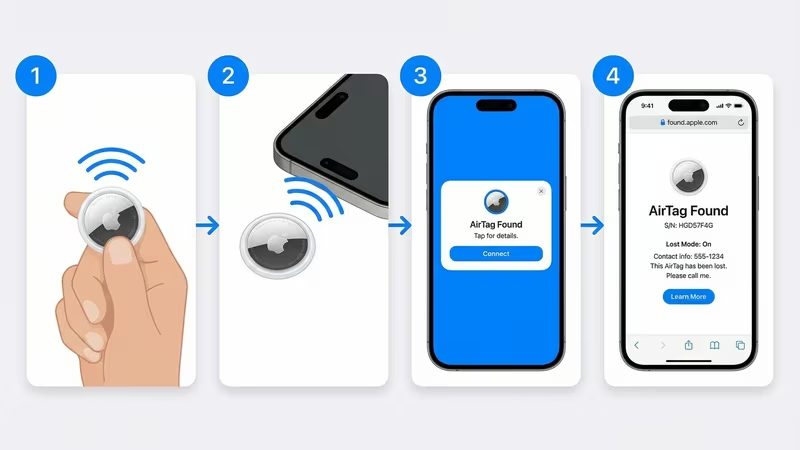
Every AirTag contains an NFC chip that stores a short URL pointing to found.apple.com. When you tap an iPhone to the white face of the AirTag, iOS reads that URL over NFC and immediately opens it in Safari, with no app download or account required. The website then tells you whether the AirTag is in Lost Mode and, if so, provides the owner's contact information.
If you haven't tapped the AirTag yet, you may hear it beep. Apple programs each AirTag to play a sound after it has been separated from its registered owner for somewhere between 8 and 24 hours. That beep is intentional: it is Apple's anti-stalking feature designed to alert bystanders that an AirTag is nearby. If you've been hearing an intermittent chime from your bag or car, that's your cue to search for the device. Our AirTag beeping explainer covers what each sound pattern means.
How to Scan an AirTag with Your iPhone
Scanning takes about one second and works on any iPhone XS or later running iOS 14.5 or newer. Here's the exact process:
- Hold the AirTag with the white side facing you. The white plastic face is where the NFC antenna sits.
- Unlock your iPhone. NFC scanning works from the lock screen on newer iPhones, but unlocking first avoids any confusion.
- Touch the top edge of your iPhone to the center of the white side. The NFC reader on iPhone lives at the very top of the device, not the camera end or the bottom.
- Hold it still for about a second. You'll feel a subtle haptic tap and see a notification banner at the top of the screen.
- Tap the notification. Safari opens found.apple.com automatically. No login required.
If nothing happens, move the phone slightly. The NFC field is small and the phone needs to be nearly flat against the AirTag face. Older iPhones (XR, XS, 11) sometimes need a second or two of contact; newer models (12 and later) respond almost instantly.
AirTag 2 (released 2025) uses the same NFC chip and found.apple.com process as the original. The scanning steps above are identical. The second generation brings improved Precision Finding accuracy and a longer Bluetooth range, but the tap-to-scan workflow for identifying a found AirTag hasn't changed. The white face, NFC URL, and found.apple.com page are all identical.
How to Scan an AirTag with Android
AirTags use the standard NFC Data Exchange Format (NDEF), which means most modern Android phones can read them without any special app. The steps are similar:
- Open your phone's Settings and confirm NFC is enabled (usually under Connections or Wireless settings).
- Hold the back of your Android phone, where the NFC antenna is (typically near the center or top-center), close to the white face of the AirTag.
- Your phone should display a notification or open a browser prompt directing you to found.apple.com.
- Tap the link to see the AirTag's information.
On some Android phones the built-in NFC reader won't auto-open a browser link, depending on the manufacturer's NFC settings. If tapping the AirTag does nothing, try downloading a free NFC tag-reading app such as NFC Tools, which will read the AirTag's URL and let you open it manually. Samsung Galaxy phones running One UI 4+ and Pixel phones running Android 11+ generally handle AirTag NFC natively without an extra app.
One important difference for Android users: you won't receive the automatic "AirTag traveling with you" safety alerts that iPhone users get, because those rely on the Find My network's iPhone-to-iPhone detection. Google has added cross-platform unwanted tracking alerts (via Google Play Services, rolling out from 2024), which detect AirTags and other Bluetooth trackers. If your Android phone flags an unknown tracker, that alert will guide you through the same NFC scan process above to identify it.
What found.apple.com Tells You
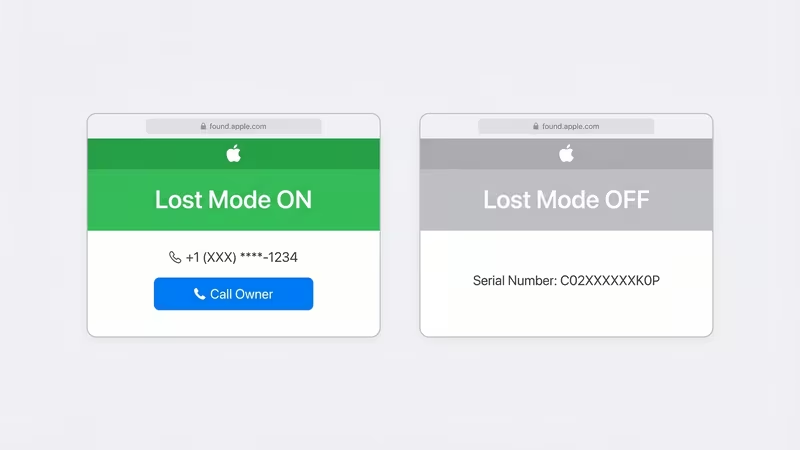
The found.apple.com page always shows the AirTag's serial number. Beyond that, what you see depends entirely on whether the owner has enabled Lost Mode in their Find My app.
| Info | Lost Mode ON | Lost Mode OFF |
|---|---|---|
| Owner contact info | Custom message + last 4 digits of phone number | Not shown (privacy protected) |
| Can you contact owner? | Yes: tap Call to reach them | No: hand in at Apple Store or police |
| What the owner sees | Notification that their AirTag was scanned + updated location | Last known location on Find My map (not notified of your scan) |
| Serial number visible? | Yes | Yes |
Apple deliberately withholds owner information when Lost Mode is off to protect user privacy. They will not disclose who registered the tag even if you contact Apple Support directly. Apple's official guide on found AirTags summarizes the policy clearly.
Always photograph or note down the serial number before you do anything else. The serial number visible on found.apple.com is your most important asset in three situations:
- Hand it in at an Apple Store. Staff can look up the registered owner internally using the serial number and contact them directly.
- File a police report. If you suspect the AirTag was used for stalking, law enforcement can formally request owner identity from Apple using the serial number under a legal process.
- Keep a personal record. If the situation escalates later, having the serial number documented gives you something concrete to work with.
You can also find the serial number engraved on the AirTag itself by looking at the silver ring on the back, which is useful if you can't get the NFC scan to work.
What to Do If the AirTag Is Not in Lost Mode
No owner information means you can't return it directly. You have three practical options:
Hand it in at an Apple Store. Apple can look up the registered owner internally using the serial number and contact them. This is the most reliable path if the owner hasn't noticed the tag is missing yet.
Leave it at a carrier store or post office. Most major carrier stores (AT&T, Verizon, T-Mobile) accept found electronics as lost property. Post offices in many countries have a formal lost-property process. If the AirTag is in a safe, public location where the owner is likely to retrace their steps, you can also leave it where you found it rather than moving it.
Give it to local police. Law enforcement can log it as found property and reunite it with the owner if they file a report. They also have access to Apple's law enforcement request process if the situation warrants it.
What you should not do is keep it and try to pair it with your own Apple ID. AirTags can only be claimed by the account that originally registered them. You can't "adopt" a stray AirTag without the owner first removing it from their account. If you're interested in how AirTag ownership transfer works, that process requires action from the original owner's side.
Is Someone Tracking You with This AirTag?
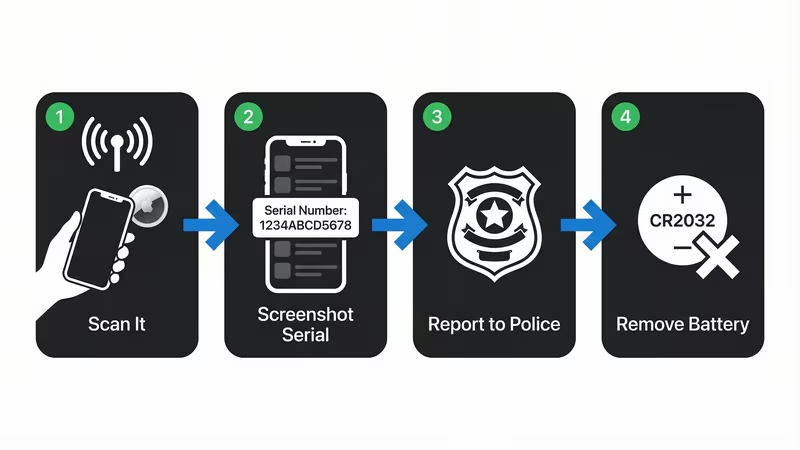
If you find an AirTag in your bag, car, or jacket pocket and you didn't put it there, treat that as a serious concern. Apple's anti-stalking alerts are designed to notify you, but they're not instantaneous. An AirTag alerts a nearby iPhone that it has been traveling with that device for an extended period, typically after 8 to 24 hours.
If you suspect you're being tracked, here's what to do:
- Scan the AirTag immediately to capture the serial number on found.apple.com. Photograph or note it down before doing anything else.
- Report to police if you believe the tracking was malicious. Law enforcement can formally request owner identity from Apple using the serial number.
- Disable the AirTag by pressing the white back cover down and twisting it counter-clockwise to open the battery compartment, then remove the CR2032 battery. This kills all tracking instantly. If you also want to silence the built-in speaker before the battery runs flat, our AirTag speaker disable guide walks through that option.
- If you received an iPhone alert saying "AirTag Found Moving With You," follow the prompt to play a sound on the AirTag and locate it.
The broader context of AirTags used for stalking is worth understanding if you feel you're being monitored. Apple also publishes an AirTag safety overview with guidance on unwanted tracking. If an AirTag was specifically hidden on your vehicle, our guide on finding an AirTag hidden in your car covers the most common hiding spots.
If you want one for yourself
Apple AirTag 2 (1-Pack)
The second-generation AirTag includes the same NFC chip and found.apple.com integration you just used. Setup takes under a minute with any iPhone running iOS 14.5 or later.
View on Amazon →FAQ
Can I find out who owns an AirTag if it's not in Lost Mode?
No. The only way to find AirTag owner contact information is through Lost Mode. Apple's found.apple.com only reveals contact details when the owner has explicitly enabled it. If Lost Mode is off, you'll see the serial number but no personal data. Apple will not disclose owner identity through their support channels either, as this is a deliberate privacy design.
Does scanning an AirTag notify the owner?
It depends. When an AirTag is in Lost Mode, Apple sends the owner a notification that their tag was scanned and its location was updated. If the tag is not in Lost Mode, scanning via NFC does not trigger any notification to the owner. They won't know you tapped it.
What if I find an AirTag but have no smartphone?
Without a smartphone you can't scan the AirTag yourself. Hand it in to customer service if you're in a store, take it to a local police station, or bring it to an Apple Store. They can scan it and hold it as lost property until the owner files a report.
Can police find out who owns an AirTag?
Not directly. Law enforcement can submit a formal legal request to Apple using the AirTag's serial number if the tag is part of a criminal investigation. Apple complies with valid legal requests. This is not a process available to members of the public.
Can I keep a found AirTag and register it myself?
No. An AirTag is securely locked to the original owner's Apple ID until they remove it from their account. You can't force-pair it to a new account. If someone wants to give you their AirTag, they need to transfer AirTag ownership through their own Find My app first.
Do AirTags beep when separated from their owner?
Yes. An AirTag that has been away from its paired device for 8 to 24 hours will play a sound automatically. The timing window is Apple's anti-stalking measure. It ensures a hidden AirTag will eventually make itself known to anyone nearby. If you want more detail on the timing and sound patterns, the AirTag beeping FAQ covers all the scenarios.