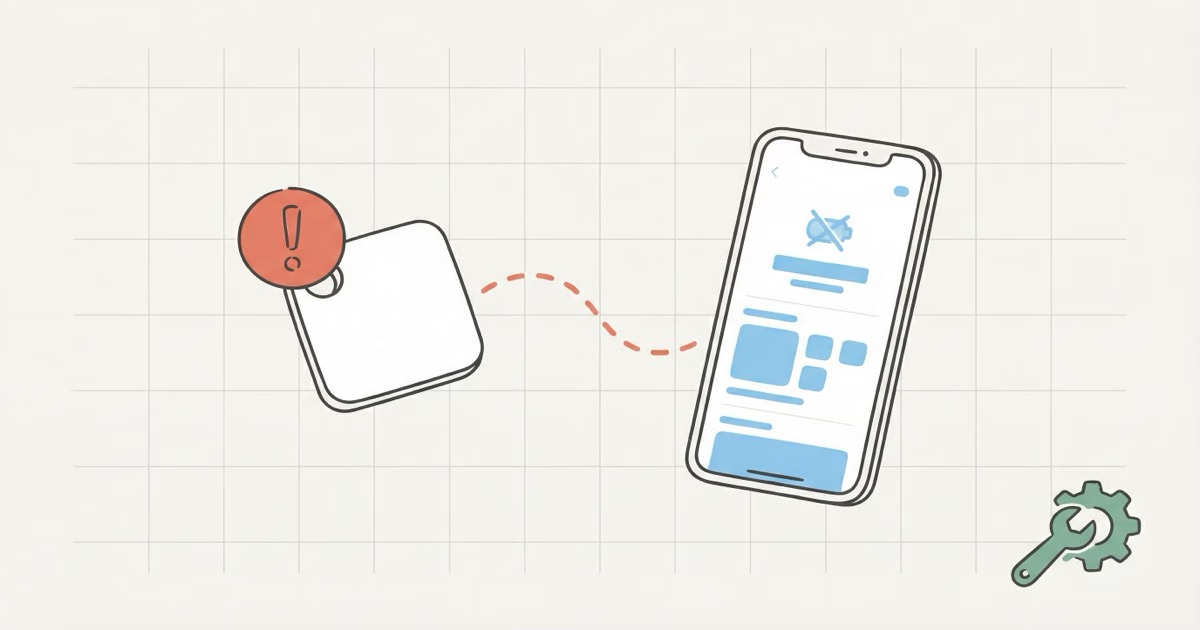
The most common reason a Tile tracker stops working is a location permissions issue. Tile needs "Always" access on your phone, not just "While Using." Go to Settings, find Location Services, select Tile, and set it to Always with Precise Location on. That single change fixes the problem for most people. If it doesn't, work through the full troubleshooting list below.
A Tile tracker not working is almost always fixable. The catch? The actual fix is rarely obvious. Sometimes it's a permission buried three menus deep. Sometimes it's a dead battery you can't replace because Tile sealed the case shut. I've hit every version of this problem across the Tile Mate, Tile Pro, and Tile Slim, and the pattern holds: 90% of Tile issues come down to five causes, all covered here. Start at Fix 1 and work down.
9 Fixes When Your Tile Tracker Isn't Working
Fix 1: Set Location Permissions to "Always"
This is the fix. Not one of the fixes. The fix.
Go to Settings, then Privacy & Security, then Location Services, then Tile. Set the permission to "Always" and make sure Precise Location is toggled on. The "While Using App" option sounds reasonable, but it means Tile only gets location data when the app is actively open on your screen. Close the app, and Tile goes blind. Life360's official troubleshooting page lists this as the single most common cause of Tile connectivity failures. On Android, the equivalent setting is "Allow all the time" under App Permissions.
One detail people miss: iOS can silently downgrade the permission after a software update, even if you set it to "Always" during initial setup. Worth rechecking after every iOS update.
Fix 2: Toggle Bluetooth Off and On (the Right Way)
Don't use the Control Center toggle. That's the mistake. The Bluetooth switch in Control Center doesn't fully disable Bluetooth on iPhone -- it just stops new connections while maintaining existing ones. Go to Settings, then Bluetooth, toggle it off, wait 10 seconds, then back on. This clears stale connections that may be blocking Tile's pairing. If you're on Android, do the same from the system Bluetooth settings, not the quick-settings panel.
Fix 3: Force-Close and Reopen the Tile App
Swipe up from the bottom of your iPhone, find the Tile app in the switcher, and swipe it away completely. Then reopen it fresh. Background processes get stuck sometimes. A clean restart of the app resolves connection glitches that persist even when Bluetooth and permissions look fine.
Fix 4: Enable Background App Refresh
Go to Settings, then General, then Background App Refresh. Make sure it's enabled globally and that Tile is toggled on in the list. If Background App Refresh is off, Tile can't update location or detect your tracker unless you're staring at the app. This is the second most common cause of "Tile not finding my stuff" complaints, right behind the location permissions issue.
Fix 5: Update the Tile App
Open the App Store, search for Tile, and check for updates. Do it now. Older versions have known Bluetooth bugs that cause phantom disconnections and false "not found" readings. Takes 30 seconds.
Fix 6: Check the Battery (and Know Your Model)
Press the button on your Tile. If it plays a sound, the battery is fine and your problem is software-side. No sound at all? The battery is dead or critically low. What happens next depends on which Tile you own:
- Tile Mate (pre-2024) and Tile Pro (pre-2024): Pop open the back and swap in a fresh CR2032 battery. Thirty seconds, done.
- Tile Mate 2024 and Tile Pro 2024: These have sealed, non-replaceable batteries rated for 3 years. If the battery is dead, the device is dead. No user-serviceable parts.
- Tile Slim and Tile Sticker: Always sealed. If the battery dies, you replace the entire tracker.
The Tile support page on connectivity confirms that a non-responsive button press is the clearest indicator of a depleted battery. If you're within the 3-year warranty window on a sealed model, contact Tile support about a replacement.
Fix 7: Remove and Re-Add the Tile
Open the Tile app, tap the three-dot menu on the problem device, and select "Remove Tile." Then add it back as a new device by holding the Tile's button until you hear the activation tone. This completely refreshes the Bluetooth pairing and resolves persistent connection errors that survive a simple Bluetooth toggle. Think of it as the Tile equivalent of "have you tried turning it off and on again" -- but for the pairing itself.
Fix 8: Restart Your Phone
A full restart. Not a screen lock. On iPhone, hold the side button and volume down, slide to power off, wait 30 seconds, power back on. This resets the entire Bluetooth stack at the system level. Low-level Bluetooth errors accumulate over weeks and months, and they can prevent Tile from connecting even when every setting looks correct. A restart clears them all.
Fix 9: Reset Network Settings (Last Resort)
Go to Settings, then General, then Transfer or Reset iPhone, then Reset, then Reset Network Settings. Warning: this erases all saved WiFi passwords and Bluetooth pairings. You'll need to reconnect to every WiFi network manually afterward. But it resolves Tile connection issues that survive every other fix on this list. Use this only after everything else fails.
Is Your Tile Actually Out of Range?
Before you start troubleshooting, check the obvious: your Tile might just be too far away. Bluetooth range drops fast through walls, furniture, and floors. The specs say one thing. Reality says another.
| Tile Model | Rated Range (Open Air) | Real-World Indoor Range | Battery |
|---|---|---|---|
| Tile Mate 2024 | ~76 meters (250 ft) | ~10-15 meters | Sealed, 3 years |
| Tile Pro 2024 | ~120 meters (400 ft) | ~20-30 meters | Sealed, 3 years |
| Tile Slim | ~76 meters (250 ft) | ~10-15 meters | Sealed, 3 years |
| Tile Sticker | ~76 meters (250 ft) | ~10-15 meters | Sealed, 3 years |
If you regularly need to ring items across a large house or yard, the Tile Pro 2024 has roughly double the range of the Mate. Still not enough? Our AirTag vs Tile comparison breaks down how Apple's Find My network handles out-of-range tracking differently than Tile's network.
The Sealed Battery Problem on Newer Tiles
This deserves its own section because it catches people off guard. Starting with the 2024 models, Tile moved from user-replaceable CR2032 batteries to sealed built-in batteries across most of the lineup. Tile rates them for 3 years, but that clock starts at manufacturing, not purchase. A Tile that sat on a warehouse shelf for 8 months before you bought it doesn't have 3 full years left.
If your Tile Mate 2024 won't respond to button presses and the app shows an empty battery icon, there's nothing to do except replace it. No opening it up. No battery swap. The device is done.
The older Tile Mate with its replaceable CR2032 was a $3 battery swap once a year. The 2024 model is a $25 device replacement every 3 years. That's a meaningful cost difference over time, and it's one reason some people are exploring alternatives. Our Tile alternatives guide covers what's available if the sealed battery is a dealbreaker for you.
Why Tile's Network Matters for "Not Working" Problems
Some "Tile not working" complaints aren't really about the Tile at all. They're about network coverage.
Tile trackers use Bluetooth crowdsourcing to update location. When your Tile is out of your phone's Bluetooth range, it relies on other Tile app users (and Life360 users, plus Amazon Sidewalk devices) passing nearby to ping its location. The problem: Tile's network has roughly 70-77 million active nodes. That sounds like a lot until you compare it to Apple's Find My network, which runs on over 2 billion active Apple devices worldwide.
In a dense city, Tile's network works reasonably well. In suburbs and rural areas, updates become infrequent. You might see "Last seen 6 hours ago" on a Tile that's sitting on your desk at work, simply because no Tile user walked past your office recently. That's not a bug. It's a known limitation of Tile's crowdsourced detection system.
A 2026 Engadget review of Bluetooth trackers noted this exact gap: AirTags consistently returned faster location updates than Tile in suburban and rural testing. If location accuracy is your primary concern, the network size difference is worth understanding. Our best item tracker guide compares real-world tracking performance across all major platforms.
The Life360 Integration: What Changed
Life360 acquired Tile in 2022, and the integration has added some confusion. The Tile app still works standalone, but you'll see prompts to link your Life360 account. Here's what you need to know:
- Linking is optional. Your Tile works fine without a Life360 account.
- If you do link, your Tiles appear on the Life360 map alongside family members. No paid Life360 membership required for basic Tile functionality.
- The transition caused bugs. Some users reported Tiles disappearing from the app after the Life360 migration. The fix: log out, log back in, and re-pair the device.
If you're getting persistent Life360 prompts and they're interfering with Tile functionality, Life360's Tile troubleshooting guide walks through the specific steps for the integrated app. The short version: dismiss the prompts, ensure Bluetooth and location permissions are set correctly, and give the app up to 15 minutes to sync after linking accounts.
When to Troubleshoot vs. When to Replace
Troubleshoot if your Tile responds to button presses (plays a sound) but won't connect to the app. That's a software or permissions issue, and Fixes 1-5 will almost certainly resolve it.
Replace if the Tile doesn't respond to button presses at all. On sealed-battery models, a dead battery means a dead device. On older models with CR2032 batteries, try a fresh battery first.
If you've run through all 9 fixes and the Tile still won't connect despite responding to button presses, you likely have a defective unit. Contact Tile support for warranty replacement. If you're done with Tile altogether and want to see what else is out there, our AirTag alternatives roundup covers options across both iPhone and Android.
The Bottom Line
Most Tile tracker problems come down to location permissions, Bluetooth settings, or a dead battery. Work through the 9 fixes in order -- the first four solve the issue for most people. If your Tile has a sealed battery and it's completely unresponsive, replacement is the only option. And if you keep running into problems with Tile's smaller network, it might be worth looking at trackers with access to Apple's or Google's much larger device networks.
Frequently Asked Questions
Why is my Tile showing the wrong location?
Tile relies on Bluetooth crowdsourcing -- your tracker's location only updates when another Tile or Life360 user passes within range. In areas with fewer users, the "last seen" location could be hours old. This is especially common in rural areas and residential streets with low foot traffic. It's not a malfunction; it's a network density issue.
Can I use Tile on both iPhone and Android?
Yes, but not simultaneously on both. Tile works on iOS and Android. If you're switching phones, log out of the Tile app on the old device before logging in on the new one. Running the same Tile account on two phones at once causes sync conflicts that mimic connection errors.
My Tile beeps when I press it but the app can't find it. What's wrong?
The Tile hardware is fine. A beep means the battery works and Bluetooth is broadcasting. The problem is on your phone's side -- almost always a location permission issue (Fix 1) or Background App Refresh being disabled (Fix 4). Start there.
Does the Tile Mate 2024 have a replaceable battery?
No. Tile switched the Mate to a sealed, non-replaceable battery starting with the 2024 model. It's rated for 3 years. Older Tile Mates used a standard CR2032 coin cell you could swap yourself for about $3. If you specifically want a replaceable battery, the best key finder guide lists options that still offer that.
Why does Tile keep prompting me about Life360?
Life360 bought Tile in 2022 and is gradually merging the platforms. The prompts to link accounts are expected behavior. You can dismiss them -- Tile tracking works without linking Life360. If the prompts are actually interfering with functionality (some users report the app freezing on the prompt screen), force-close the app and reopen it.
Is Tile Premium worth it for better tracking?
Tile Premium ($29.99/year or $2.99/month) adds Smart Alerts, unlimited sharing, extended warranty, and free battery replacement on eligible models. Smart Alerts notify you when you leave something behind, which is the most useful feature. But it won't fix network coverage issues -- Premium doesn't make more people carry Tile. If your main complaint is inaccurate location, Premium won't help. Our AirTag vs Tile comparison breaks down whether the subscription cost makes Tile competitive with free alternatives.
How do I transfer a Tile to someone else?
Remove the Tile from your account first. In the app, go to the device settings and tap "Remove Tile." Without this step, the new owner can't activate it. Once removed, they add it fresh to their own account by holding the button until the activation tone plays. Takes about a minute total.